How do I turn my PDF into a flipbook or presentation?
To turn your PDF into a flipbook or presentation, upload it to Linkjar and change the Display mode on its settings page. It's free, no paid plan required.
How to do it
-
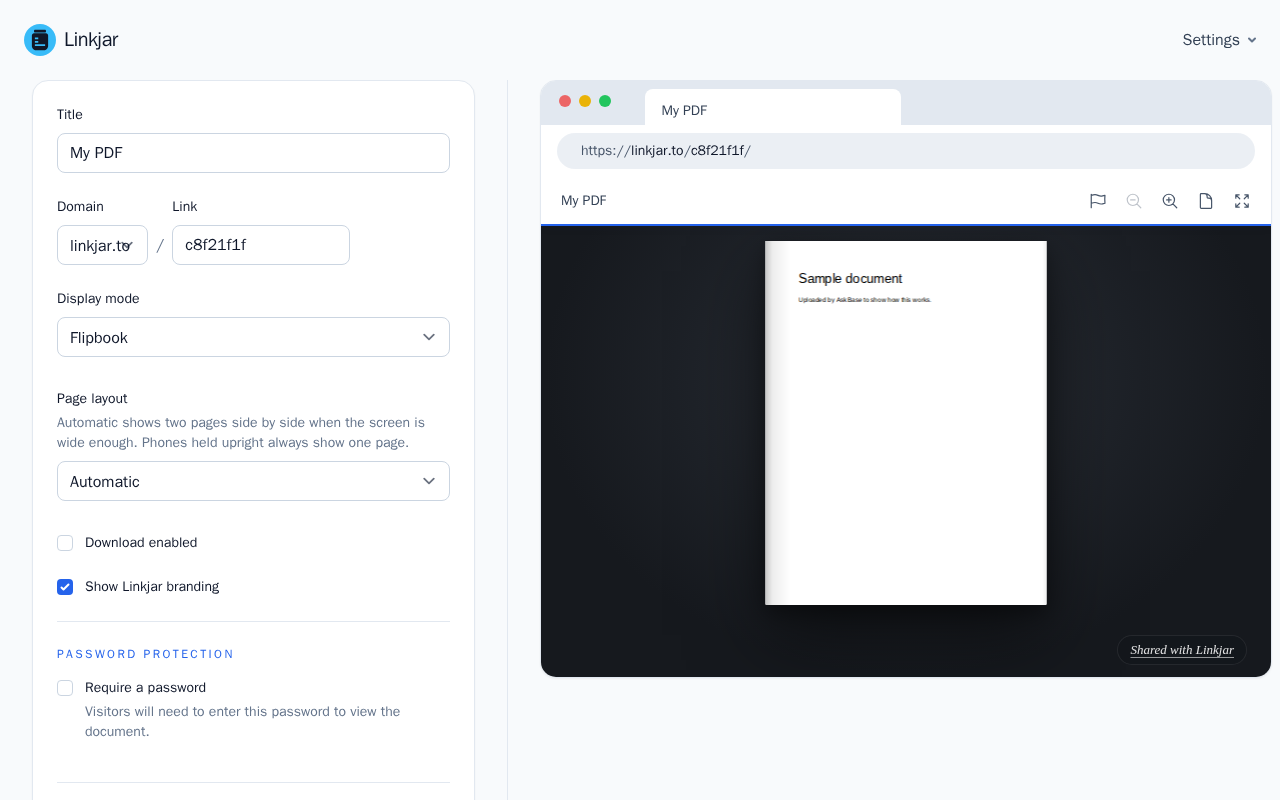
Upload your PDF. You'll land on the PDF's settings page.
-
Change the Display mode from PDF to Flipbook (or to Presentation if you prefer).
-
Save, then share the link. Visitors will see the new display mode automatically.
You can change the display mode at any time, and the share link stays the same whichever mode you choose.
Which mode should you use?
- PDF: the standard viewer, with scroll, zoom, search, and download. This is the right default for most documents.
- Flipbook: pages turn one at a time with a 3D page-turn animation when a visitor clicks the page edge, swipes on touch screens, or uses the arrow keys. It's suited to documents where the format is part of the experience, like brochures, portfolios, conference programmes, product catalogues, or yearbooks.
- Presentation: one page at a time, full screen, with arrow-key navigation. This works well for pitch decks and other slide-based content.
Both flipbook and presentation pages are responsive, scaling to fit any screen, and work on desktop and mobile browsers without needing a plugin or app.
A few other things worth knowing
- Flipbooks and presentations can be shared as a link, embedded on a site, or shared via QR code, just like a standard PDF.
- View tracking works the same way regardless of display mode.
- Flipbook and presentation modes are free for any uploaded PDF. Paid plans are for things like more documents, larger file sizes, a custom domain, or removing the Linkjar branding from the viewer.
More in Sharing documents
Can’t find what you need?
Ask a question in your own words, and get an answer from these articles or from the team.