How do I password-protect a shared link?
You can add a password to any document link from its settings page, and you can change or remove it at any time without re-uploading the file.
How to add a password
- Upload your PDF (or other document). You'll land on the document's settings page.
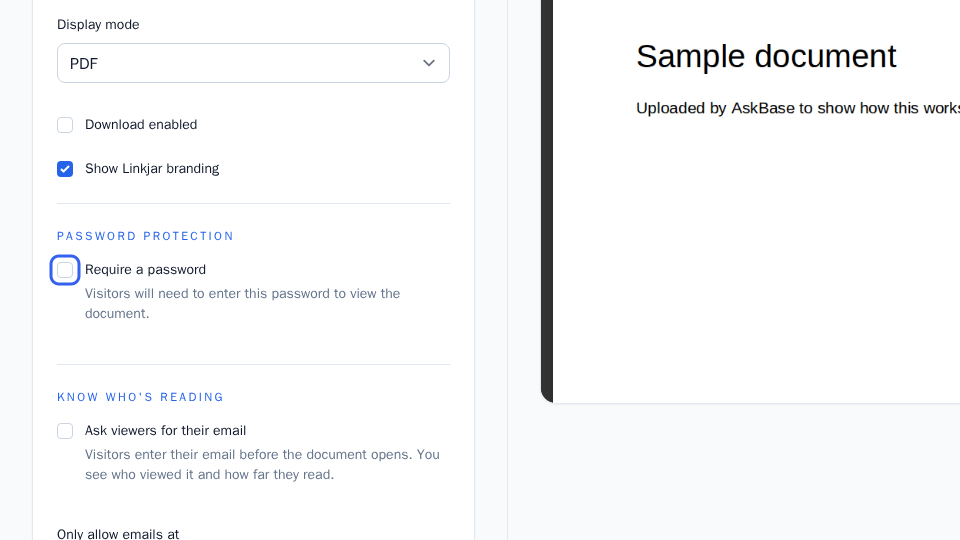
- Check Require a password.
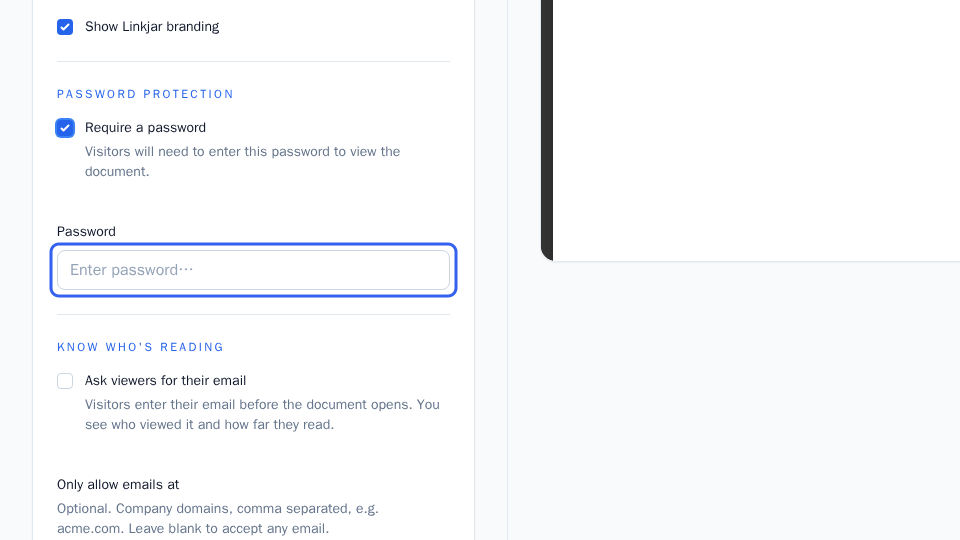
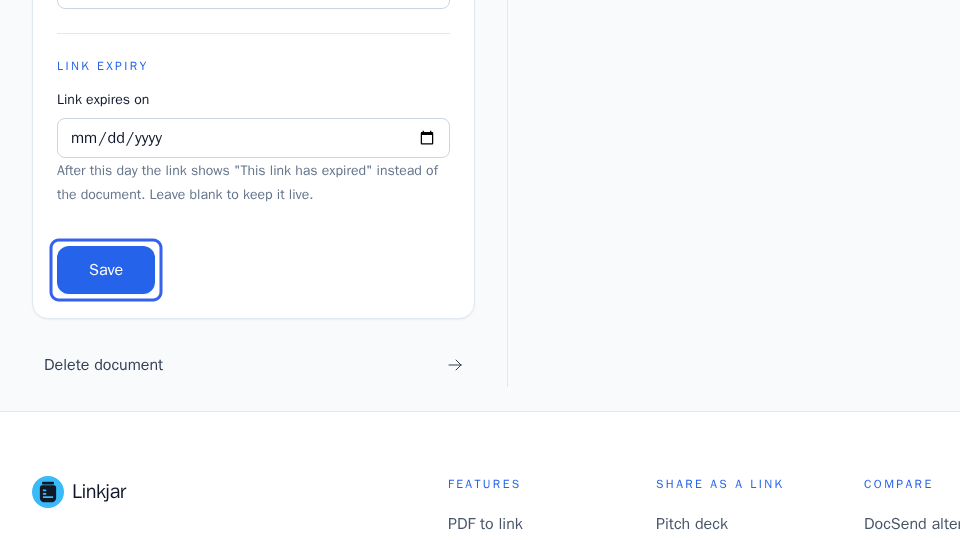
- Enter a password and save.
- Share the link as usual. Visitors will now see a password gate before the document loads.
How to change or remove a password
- Go to the document's settings page.
- Update the password field, or untick Require a password to remove it entirely.
- Save your changes.
Once saved, the change applies straight away to everyone with the link, including people who already had the old password.
What happens when a password is set
- Visitors see a password gate and must enter the correct password before the document loads.
- The file itself is never exposed at a public URL. Visitors authenticate at the gate page first.
- View tracking keeps working even with a password turned on, so you can still see how many times the document was opened.
- Repeated wrong password attempts will lock that viewer out of the gate for ten minutes.
- Access is tied to a short-lived, signed cookie (24 hours), so it can't be forged or shared between devices.
A tip on sending the password
Don't send the password in the same email or message as the link. Send the link by email and the password through a different channel, like a text message or a phone call.
More in Security and access
Can’t find what you need?
Ask a question in your own words, and get an answer from these articles or from the team.